
A step-by-step process on remediating accessible PowerPoint slides
By Angeline Neo
5 min read
One of my roles at the University of Florida is to remediate Powerpoint slides to make it accessible. Below is my remediation process for the Talent Acquisition team to present the slides to professors and human resources staff about hiring new international researchers within University of Florida.
Outline view with content
The first step I do is to go to View>Outline to ensure the titles and content appears on the Outline view. This is important because it detects hidden text boxes, organize content structure, and ensures export compatibility. If the texts are missing from the Outline, I will add them manually.
Alt-text images
Next, I add alt-text images to any images on the slides. I used the alt-text AI feature from the PowerPoint for simple images and the University of Florida's alt-text tool, powered by Navigator AI for more complex images, charts, diagrams, or tables. Alt text can be descriptive or generic, depending on if the image would provide more context aside from the texts on the slides. Screen reads read alt text aloud so images with meaningful information can enhance the understanding of the context.
Reading order pane
Next, I ensure the reading orders on each slides are correct by going to "Review>Check accessibility>Reading order pane" This is to control the sequence when screen readers read the slide content.
Accessibility checker
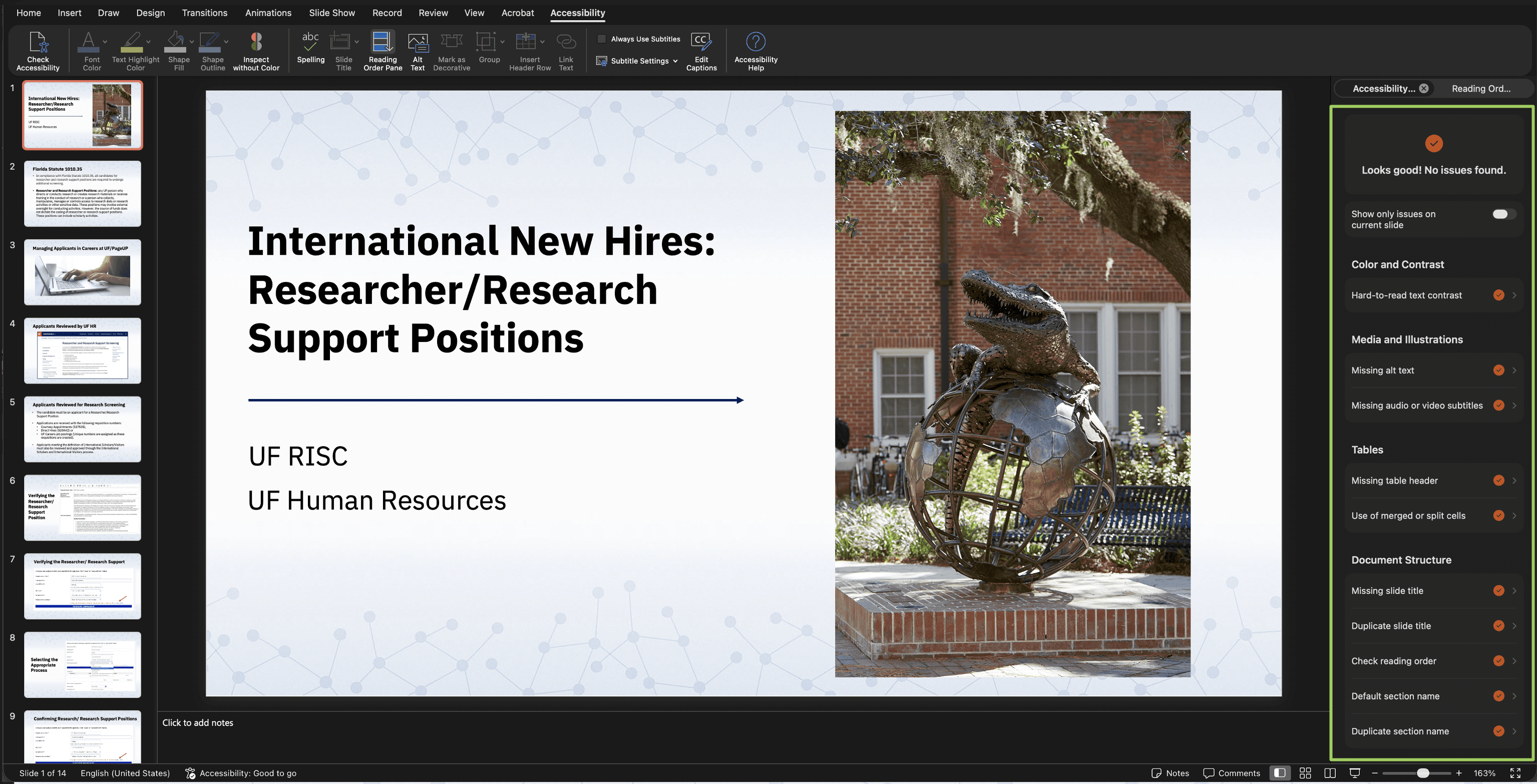
I do a final check of accessibility by going to "Accessibility>Check Accessibility." If there are any issues, it will show up on the right side bar.
Add image caption
VoiceOver on Mac for a test
Finally, I used VoiceOver on Mac to test the screen reader. This is to ensure that everything is remediated and fully accessible, in case if there were any human errors. I listen and read the text generated on every slide to prevent any errors.
Conclusion
Final check:
Can I read every word clearly and charts without squinting?
Can I clearly see the video and its captions?
Can I hear the audio playing?
Common accessibility to avoid:
Tiny text
Overcrowded slides
Jumping from one topic to another without clear transitions
Complex animations
Decorative or script fonts
Dense slide full of texts